
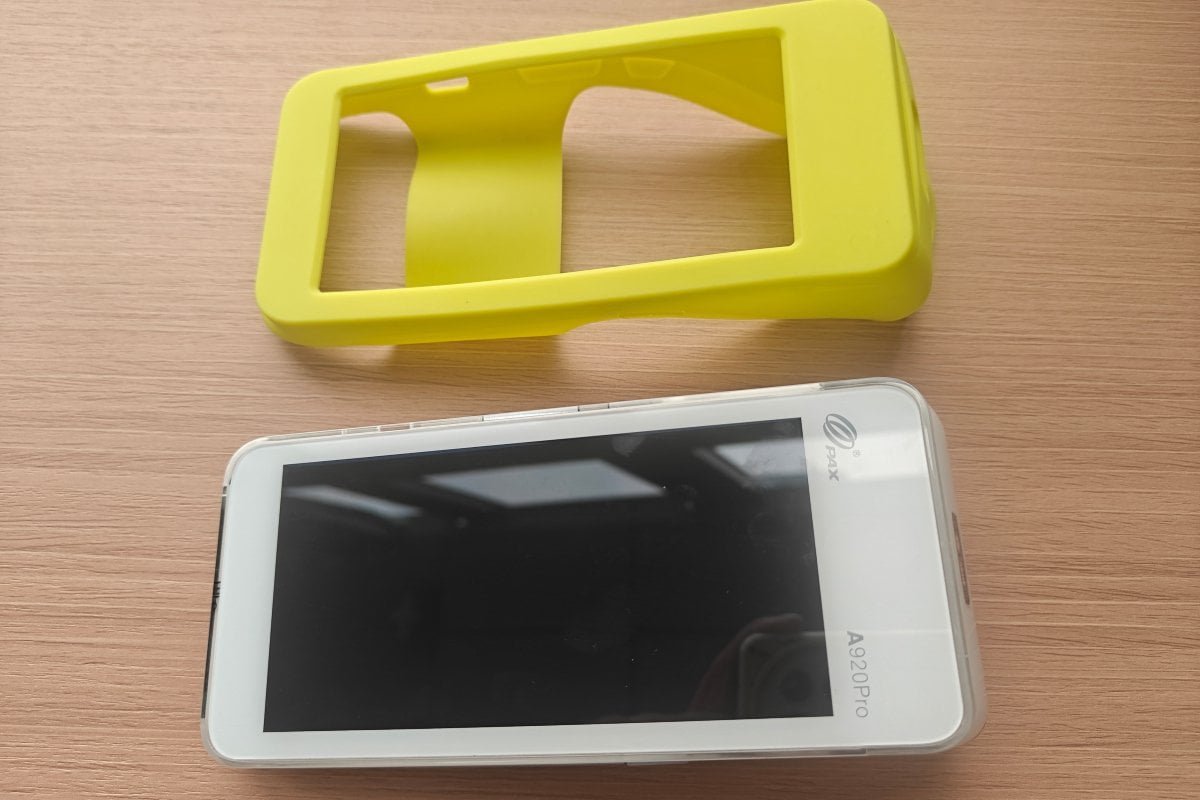
How to Use Silicone Covers for POS Machines: 4 Step-by-Step Installation Tips
How to Use Silicone Covers for POS Machines: 4 Step-by-Step Installation Tips
Learning how to use silicone covers for your POS terminal protects expensive hardware from daily drops, liquid spills, and counter wear.
Proper installation ensures that display screens, card readers, thermal paper hatches, and charging docks stay fully accessible.
Follow this 4-step photo guide to install your pos machine protective cover correctly in under two minutes.
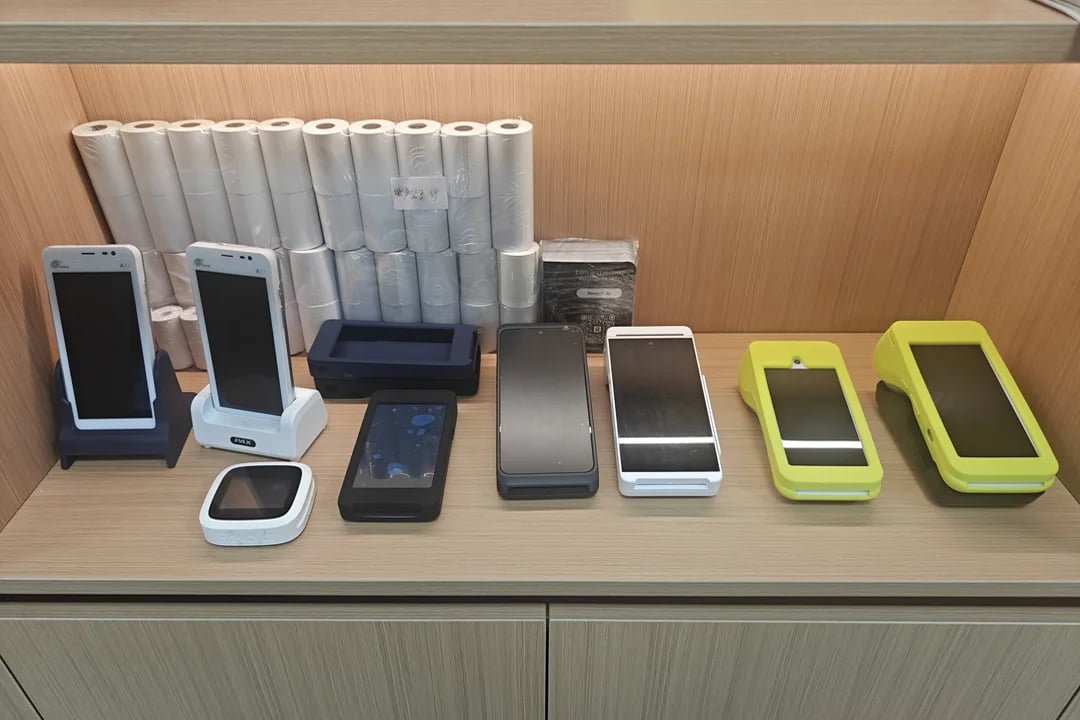
Step 1: Clean Terminal and Prepare for How to Use Silicone Covers
Wipe down your POS terminal with a microfiber cloth to remove dust, grease, and receipt paper dust.
Dust trapped beneath a tight silicone sleeve creates uneven bulges and accelerates surface wear.
Place your cleaned POS terminal and flexible silicone sleeve side-by-side on a flat workspace.
How to verify success: Inspect the terminal screen and rear casing to ensure no visible dust particles remain on the surface.
Step 2: Align Display Screen and How to Use Silicone Covers Top Port
Slide the top edge of your POS terminal into the upper compartment of the silicone cover first.
Align the thermal printer paper slot and top scanner windows precisely with the molded openings.
Gently slide the cover down over the upper screen bezel without applying forced tension.
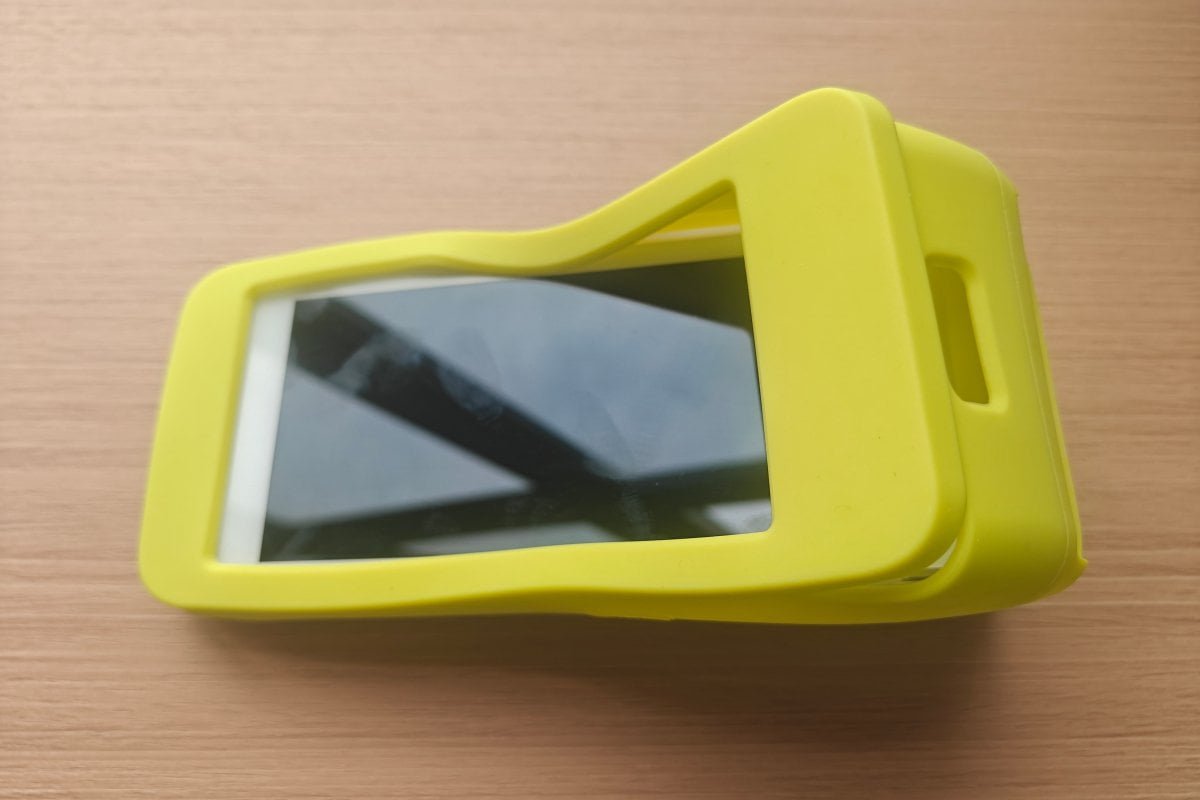
How to verify success: Ensure the display screen border sits evenly within the silicone frame without overlapping the active touch area.
Step 3: Stretch Bottom Corners for How to Use Silicone Covers
Hold the top portion of the terminal firmly with one hand while stretching the lower silicone edge downward.
Pull the flexible bottom corners over the lower edges of the POS terminal body one side at a time.
Press firmly along the side edges to align volume controls, power buttons, and Type-C charging ports.
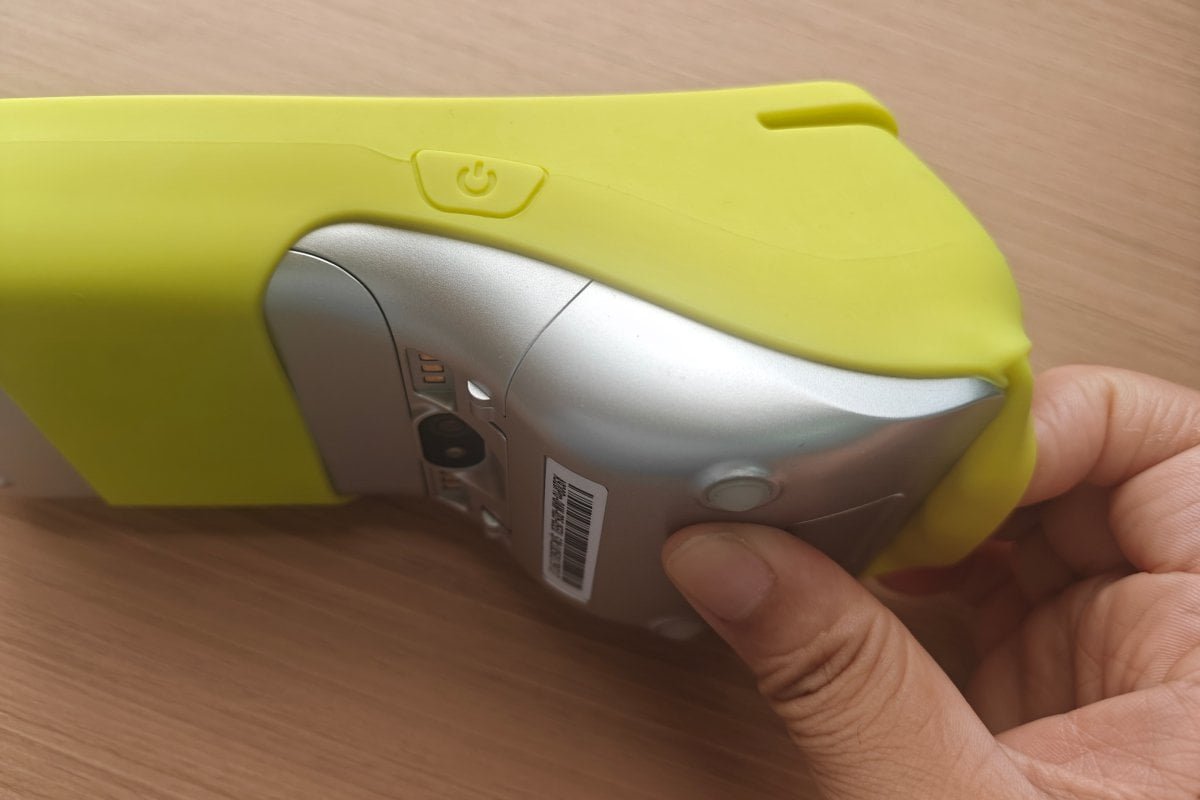
How to verify success: Press physical side buttons through the silicone cover to confirm crisp, tactile click feedback.
Step 4: Verify Cutouts and Complete How to Use Silicone Covers Setup
Inspect all four sides of the installed protective cover to ensure a snug, gap-free fit.
Check that the magnetic card reader slot, IC chip card entrance, and rear camera remain completely clear.
If your cover features an integrated silicone case pocket, test sliding your stylus or key fob into the slot.
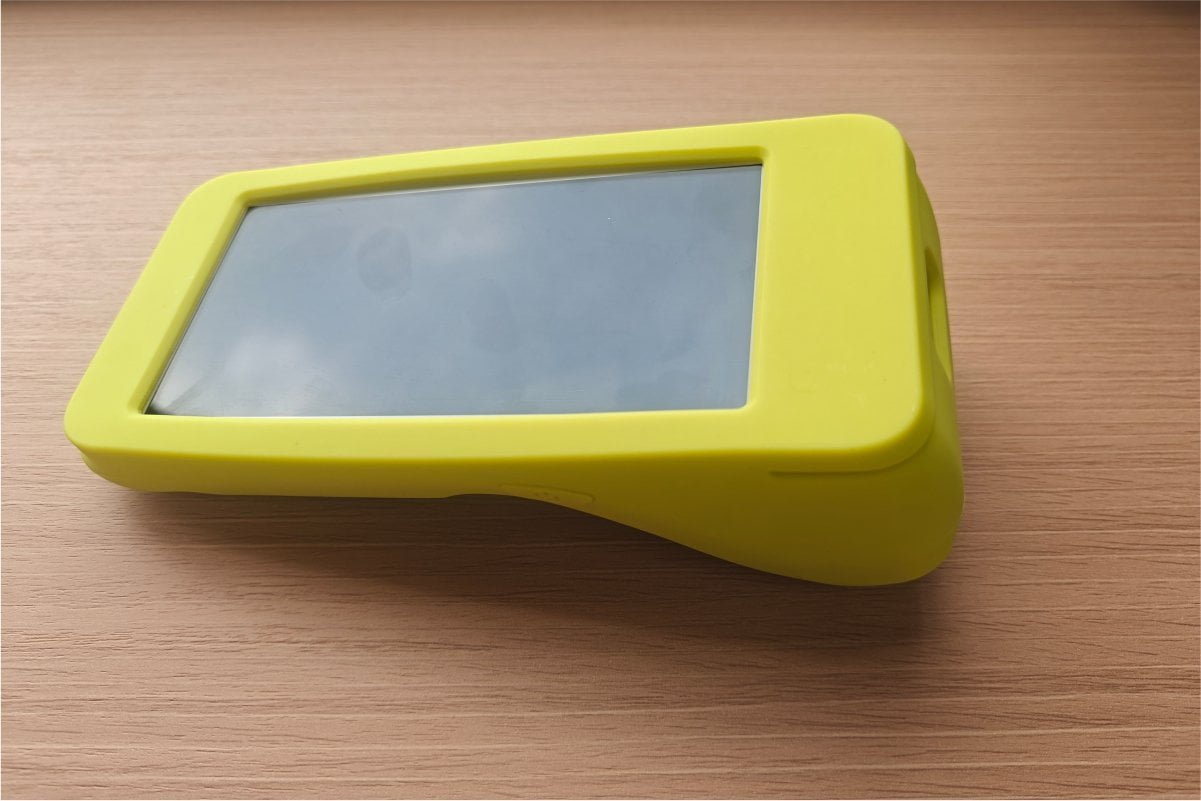
How to verify success: Perform a test card swipe and open the thermal paper hatch to confirm 100% unimpeded operation.
Why Custom Fitment Matters for How to Use Silicone Covers
Using off-the-shelf universal sleeves often leads to misaligned cutouts that block card readers and trap printer heat.
Custom-molded sleeves use 3D CAD data to ensure 1:1 precision around every port and button.
| Fitment Feature | 1:1 Custom Silicone Cover | Universal Off-The-Shelf Cover |
|---|---|---|
| Printer Hatch Access | Independent clearance; open hatch without removing cover | Pinches door edges; forces sleeve removal |
| Card Reader Alignment | Unobstructed magnetic and IC card paths | Partial blockage; leads to transaction errors |
| Drop Shock Protection | Thickened 2–3mm corner airbags absorb 1.2m drops | Thin 1mm material; minimal drop cushioning |
| Material Standard | Complies with FDA Food Contact Regulations & RoHS Directives | Low-grade rubber; turns sticky and deforms |
Proper material selection extends terminal lifespan significantly. Review our Hardware Protection Guide for detailed physical tolerance benchmarks.
Learn how we engineer precision steel molds in our Silicone Manufacturing Process Guide.
For paper loading instructions after fitting your sleeve, check our guide on How to Put Paper in POS Machine & Use Silicone Covers.
All manufacturing processes adhere to ISO 9001 Quality Management Standards to guarantee consistent bulk quality.
Quick Takeaway
Knowing how to use silicone covers correctly protects your hardware investment and eliminates daily counter hassles.
Clean the terminal first, align top printer cutouts, stretch bottom corners evenly, and verify port clearances.
External References & Industry Citations
- ISO 9001 Quality Management Standards: International Organization for Standardization
- U.S. FDA Food Contact Regulations: U.S. Food and Drug Administration
- EU RoHS Environmental Directives: European Commission RoHS Directive
About Me and Dibo Tech
My name is Kunfa Ye, but my friends call me Jeff. I was born in 1986 under the sign of the Tiger. I started working in the silicone rubber manufacturing industry in 2014, and I now have fifteen years of experience. Over these years, I started from scratch and experienced every rise and fall in manufacturing. I know the hardships and rewards of entrepreneurship deeply. I always focus on professionalism and integrity in every project.
The silicone manufacturing industry seems ordinary, but it affects every part of industrial production. I know that trust stands behind every product, and trade relies on mutual success. Over the years, my proudest achievement is not achieving personal financial independence, but helping my clients optimize their supply chains and improve production efficiency. Their success brings me far more joy than personal achievements.
Our brand, Dibo Tech (Dibo Technology Silicone Manufacturing Specialists, Official Website: https://samxine.com/), relies on technical strength and high quality. We specialize in custom OEM and ODM silicone rubber production, offering reliable custom solutions for our clients while fulfilling social responsibility for a sustainable future. I hope my experience helps your business grow. If I can assist you with experience, questions, or resources, I will do my absolute best to help. Because I always believe: the essence of business is the transfer of value, and true fulfillment comes from how much help you can bring to others.
Laisser un commentaire